- Part 1: Overall vision and structure
- Part 2: The Overview (aka "The most important section not to screw up")
- Part 3: The Meat and Potatoes
- Part 4: The Cover Letter
Showing posts with label technology. Show all posts
Showing posts with label technology. Show all posts
Monday, January 3, 2011
Technical Resumes
I recently wrote a short series of posts on the advice I typically give when writing resumes for technical and technology leadership positions. This post serves simply as a Table of Contents.


Technical Resumes: Part 4 (Cover Letter)
In the previous post I completed the description of the advice I typically give when I'm asked to review a resume. In this post, I cover a related topic: the cover letter. I was going to cover LinkedIn as well but that's a larger topic that deserves it's own space.
Cover Letter
Cover Letter
Some people spend considerable effort writing their cover letter. Having read thousands of resumes (many with cover letters attached) I'm less convinced of their value. If you've done your homework writing a concise resume with relevant content and a good Overview then a long cover letter is unnecessary. Many resume reviewers don't even open the cover letter or they shuffle it behind the resume. That said, there can be some value in a cover letter but just don't agonize over it. Spend your time on your resume and customizing the Overview.
Like the resume itself, the format of your cover letter is a matter of personal style. As always, I'm a fan of "less is more" and prefer a simple, traditional business letter layout. Let your word processing package help you with a format that appeals to you. I often use a separate font and colour for my name and contact information but everything else is in a simple, sans serif font in black "ink".
I stick to a three paragraph format. The first and last paragraphs are extremely short. The first simply states that position or positions I am applying for. The last paragraph thanks the reader for taking the time to review my qualifications and offers to meet with them to explore the possibility of a mutual fit (don't forget that you're looking for a good employer as much as they are looking for a good employee).
The middle paragraph is a little longer but I still try to keep it to maybe three sentences. I use this paragraph to draw links between the advertised position(s) and the my experience. My goal is to peak interest in my experience and maybe offer a hint at my personality. Unlike the resume, the cover letter gives you an opportunity to put on a personal face. Address the reader by name (if you know the name of the hiring manager). Use pronouns like "I". Express your excitement at the opportunity.
Finally, if you are sending a paper cover letter then always sign the paper with your signature. I prefer blue ink to set the signature apart from the black text.
Thursday, December 23, 2010
Technical Resumes: Part 3 (The Meat and Potatoes)
In the previous post I discussed the importance of a well-written, concise, relevant Overview in order to entice resume reviewers to spend more time on looking over your full credentials. In this post I make some suggestions on how to present the main body of your resume.
Recall that I recommend a four part structure for most resumes: Overview, Professional Experience, Personal Growth, and Education. Those just entering the job market might want to swap the order between Experience and Education. Those applying for very technical positions (like software developer) may want to include a fifth section summarizing their Technical Experience.
Experience
If you've done a good job at creating a brief, cleanly formatted resume with a relevant, focused Overview then the reviewer should now be eager to dig into the details of your professional experience. The purpose of this section is to describe the most relevant portions of your experience. This is not meant to be an exhaustive database of all your activities and projects. All previous comments regarding relevancy and brevity still apply.
As I mentioned in Part 1, I recommend using present tense ("deliver quality widgets") for your current position and past tense ("delivered quality widgets") for previous positions. Mixing tenses distracts the reader and interrupts flow. I also recommend avoiding the use of any pronouns. "Delivered quality widgets" rather than "I delivered..." or "we delivered...". This has a number of advantages. It sounds professional, makes the resume ever so slightly shorter, and it gives the prose a quicker pace.
The usual order to list your professional experience starts with your most recent or current position and moves backward in time. The format used is a matter of personal preference but I include the company name and position title left justified and the dates of employment right justified. I keep bullets small, monochromatic, and unobtrusive. I try to keep individual bullets to a single line of text.
Following the position heading, I usually suggest adding a single sentence that describes the position in the company (which helps in cases where non-standard titles might have been used). Following this sentence is your (typically bulleted) list of what you feel were the most important responsibilities and accomplishments in this position. Avoid all irrelevant and obvious details. For instance, if your job title was "Software Developer" then don't bother adding a bullet that states that you developed software.
Some people (even some organizations!) confuse activity with value. It might be the case that you diligently attended weekly status meetings don't include that in your resume. You want to focus on the ways you created value for the company you worked for. This means describing what you delivered and not the actions you took to deliver it. For technical positions this could mean describing the products that you contributed to building. For leaders this might mean describing the products that your team delivered. Avoid activity-centric words and phrases like "attended", "discussed", "met with", "worked on" and favour more results-oriented words like "delivered", "resolved", "created", "invented".
Newer leaders can sometimes get stuck because they still cling to definitions of value from their single contributor days. For instance, some newer leaders go through a period where they don't see their new responsibilities of leadership and organization as being as valuable as building or testing software. Remember that as a leader your sphere of influence is wider and it is quite acceptable to talk about your team's accomplishments as well as your own direct accomplishments. Maintain results-oriented language though and avoid descriptions like "Oversaw the creation of comprehensive security standards...". Hiring managers know that leaders lead teams of people that deliver different portions of a result. You don't need to include the fact that you oversaw the work. Rather focus on the deliverable: "Created comprehensive security standards...".
Finally, here are a few other common missteps that I've seen.
- Using internal project and product names and acronyms as if the reader should just know what they mean ("I worked on the XH25 component of Project Blinko").
- Describe what the company does rather than what you did.
- Include a comprehensive list of all responsibilities, accomplishments, deliverables, and activities in a long 20 bullet list. Edit!
- Put the most significant accomplishment at the end or randomly in the middle of the list. If your most significant and relevant accomplishment was the invention of a new product feature that increased sales 20% then make that the first bullet!
- Not being specific about accomplishments. "Led a team delivering client-server software" rather than "Led a team delivering 6 major software releases and 12 patch releases over a period of 18 months".
- Going into too much detail for positions in the distant pace. Focus your time on the more recent and relevant positions. Limit the descriptions to a couple bullets for the distant past and positions that are of a different nature than the one you are applying for.
Personal Growth
It is important to include a section on personal growth because it demonstrates that you are a life-long learner and have depth that goes beyond just what your work experience suggests. Personal growth accomplishments might include any of the following:
- Courses taken and completed
- Certifications
- Volunteer roles
- Sports-related roles (coaching, captain of a team, team in a competitive league)
- Speaking engagements
- Publications (although these might be attached to specific roles as well)
- Relevant hobbies ("Created and maintain the Infocom website" is relevant. "Table top gaming" is, likely, not)
- Your blog (unless your subject matter is of the nature of "nice pairs that I've seen")
Technical Experience
If you are applying for a leadership position it is less relevant what computer languages you are fluent in and what software frameworks you've used. This doesn't mean you should exclude them in your work experience but there really isn't any need to have a specific technical experience section in your resume. Spend a little more time on describing how your leadership and communication skills delivered results.
However, for technical positions you really should include technical experience. Search engines will pick up on keywords like Java, C#, and Maven. Also, the technical experience section is often used, like the overview section, to quickly filter resumes. If I'm looking for software developers with Ruby experience I'm going to want to see Ruby somewhere on the resume before I dig into the finer details. Keep the section short and neatly formated.
Recall my note regarding honesty. You want to focus on the technologies, languages, platforms, frameworks that you have real experience using. If all you know about Javascript is it's definition and what it is typically used for but you don't have any experience actually using it, then don't include it. You'll just embarrass yourself later in the interview when it becomes obvious that you've never actually worked with it.
Education
By "education" I mean formal, multi-year, focused study on a subject resulting in some kind of degree or diploma. Microsoft Certification does not qualify as education. It's training and should go in your personal growth section.
Different companies place different emphasis on education. Google, for example, places a very strong emphasis on education even if you got your degree 20 years ago. My philosophy has always been that your education demonstrates your intelligence and commitment early in your career but soon gets overshadowed by your continuous learning and professional experience. Unless you are new to the workforce, or your education ties directly into the job you are applying for, or the company to which you are applying places a high importance on education then I recommend including this section at the end of your resume.
Obviously include the school names and degree levels achieved. If you did a thesis then include its title and link to it if it is available online. Include the titles of (and links to) other academic publications you achieved in your studies.
I'm hesitant to recommend including education that was started but not completed. It suggests a lack of discipline or capability. If you started a degree but had good reason to not complete it (perhaps a business or job opportunity came up) then by all means include the fact that you did 3 years of a 4 year degree but then also include your reason for not completing.
So that basically covers that I typically advise when people ask me to review their resume. I'm going write one more post tomorrow that covers the related topic of the Cover Letter and I might include a couple of thoughts on LinkedIn.
Wednesday, December 22, 2010
Technical Resumes: Part 2 (The Overview)
In yesterday's post I kicked off my resume writing advice for technical and technology leadership positions. Today's post continues on that theme and I cover what I consider to be the most critical and most overlooked part of the resume: The Overview.
Overview is to Resume as Resume is to Interview. Hiring managers have many constraints on their time and are not waiting around for your resume to hit their desk. It is not unusual for hiring managers to blast through a 12 inch thick stack of resumes in 60 to 90 minutes making gut reaction decisions on which candidates seem the most promising. When I sort resumes I create two piles: Interested and TBNT (Thanks, But No Thanks). After my initial sort the Interested pile is typically about 10% of the original stack size. This is the pile that I spend my time on and really consider who I would like to interview.
Spending 30 seconds on one resume while doing this initial sort is the absolute maximum. Typically a decision is made in less than 10 seconds. There are a handful of surface factors that cause resumes to be dumped into TBNT: excessive length, obvious spelling errors, or anything that makes the resume look like it will be difficult to work through (poor layout, goofy font choices, dark paper -- why print black text on dark coloured paper?). However, most of the filtering comes from the Overview section of a resume. The primary goal of the Overview section is to convince the reviewer that they should continue to read the rest of your resume, search for you on LinkedIn and otherwise spend timing learning about you.
Spending 30 seconds on one resume while doing this initial sort is the absolute maximum. Typically a decision is made in less than 10 seconds. There are a handful of surface factors that cause resumes to be dumped into TBNT: excessive length, obvious spelling errors, or anything that makes the resume look like it will be difficult to work through (poor layout, goofy font choices, dark paper -- why print black text on dark coloured paper?). However, most of the filtering comes from the Overview section of a resume. The primary goal of the Overview section is to convince the reviewer that they should continue to read the rest of your resume, search for you on LinkedIn and otherwise spend timing learning about you.
I've seen resumes include an Objectives section (rather than an Overview) where the candidate describes what their career objectives are. To be honest, I don't know you and I don't yet care what your objectives are -- TBNT (or at least ignore this section). I've read other resumes that include a mini-resume in their Overview. This kind of Overview doesn't say anything new or interesting that I can't get from the rest of the resume and is typically consists of long lists of comma separated skills and technologies. Way too long and boring to hold my attention -- TBNT. Still others include all boiler-plate. Let me fill you in on a secret, there are literally thousands of people who "have excellent communication skills" and "are dynamic leaders" and "put great attention to detail" -- TBNT. Still others don't include an Overview section at all. The reviewers challenge then becomes figuring out where to cast their eyes for the next 10-30 seconds in order to determine if there is enough value in doing a deeper read. Couple this with an overly long resume and you're on the top of the TBNT pile.
Imagine you have 30 seconds to convince The Donald that you have a compelling business idea or Brian Eno that U2 should be opening for your band or Spielberg that you've written a blockbuster. In all these cases you need to know what Trump/Eno/Spielberg are interested in and what they find valuable. The same goes for your Overview. If you have a boilerplate Overview that doesn't take into account the specific position let alone the specific company then you're 10 seconds away from TBNT.
You mean I have to write an Overview for every job that I'm applying for? Yes, but it's not as bad as it sounds. Chances are you have a core set of skills and interests and you are applying for similar positions at companies in related industries. Still, there is a huge difference between what is required for a Senior Software Designer vs a Software Team Leader.
To start off I recommend writing a longer and broader Overview that captures many of your technical and non-technical skills, experiences and traits. This might sound counter to everything I've written so far but you will NOT use this version on any actual resume. Think of this as your diamond mine out of which you will extract gems for each resume. You will edit this über-Overview down to just what is needed for each position/company to which you are applying. Editing down is much easier than trying to come up with new material for each resume.
Once you are ready to write an Overview for a particular resume put yourself in the shoes of the business owner or hiring manager for that company and think about how you would fill that position. Imagine that you have dozens or hundreds of highly skilled candidates to choose from so you can be picky. What experience, skills, knowledge would you be looking for to fill the position? What would your dream candidate look like? If you're having trouble do a little research on the web. Google and LinkedIn can be great resources to get to know more about a company or about a type of position. Now consider your experience, skills and knowledge and pick out a couple of experiences or unique skills that you think best match your vision for this position. Be specific and call out (briefly!) experiences that you think would make you the top candidate for this position.
Once you have a draft Overview consisting of maybe 3 to 5 sentences (no more than 6 to 8 lines of text) read it over again deleting everything that you feel takes away from the core message you are trying to deliver. Be brutal in your editing. Slash irrelevant details, boilerplate, and duplication. Even eradicate unnecessary words (particularly adjectives) and superfluous punctuation. Get this section down to its very essence in order to minimize the time it takes a reviewer to decide to give your resume a deeper read. This is your first impression and you want it to be positive. Keep it relevant, keep it specific, keep it brief. Your goal is to illicit a reaction like "hey that's cool" or even "hmmm, that's interesting". All you want at this point is for the reviewer to be compelled to invest time in the rest of your resume.
A word about honesty. Sometimes getting into the mind of the hiring manager gets your creative juices flowing and after you've written your Overview you realize that you've described someone else. At that point you need to either rewrite the section using your actual experience (maybe you're 80% qualified for the position) or admit that maybe you're not the right person for this position after all. Nothing will irk a hiring manager more than being lied to and having their time wasted. At best you'll be on permanent TBNT from that department but you might also end up on the black list for the whole company or even a whole industry.
Once you have a draft Overview consisting of maybe 3 to 5 sentences (no more than 6 to 8 lines of text) read it over again deleting everything that you feel takes away from the core message you are trying to deliver. Be brutal in your editing. Slash irrelevant details, boilerplate, and duplication. Even eradicate unnecessary words (particularly adjectives) and superfluous punctuation. Get this section down to its very essence in order to minimize the time it takes a reviewer to decide to give your resume a deeper read. This is your first impression and you want it to be positive. Keep it relevant, keep it specific, keep it brief. Your goal is to illicit a reaction like "hey that's cool" or even "hmmm, that's interesting". All you want at this point is for the reviewer to be compelled to invest time in the rest of your resume.
A word about honesty. Sometimes getting into the mind of the hiring manager gets your creative juices flowing and after you've written your Overview you realize that you've described someone else. At that point you need to either rewrite the section using your actual experience (maybe you're 80% qualified for the position) or admit that maybe you're not the right person for this position after all. Nothing will irk a hiring manager more than being lied to and having their time wasted. At best you'll be on permanent TBNT from that department but you might also end up on the black list for the whole company or even a whole industry.
Next Up: The Meat and Potatoes
Tuesday, December 21, 2010
Technical Resumes: Part 1
Over the years in my roles as manager, director, and technical executive I frequently had to review resumes and qualifications of candidates applying for technical and leadership positions. I also get asked fairly frequently (maybe once a month) to cast a critical eye on the resumes of coworkers, former coworkers, friends of coworkers, etc. While I enjoy doing this it does take some time to do well. What I've included in this post and in the upcoming posts is the core set of principles that I use to guide my review of resumes for technical and technology leadership positions.
The Goal
Ask yourself why you are writing a resume at all. If your answer was "to summarize my experience" or even "to get a job" then think again. Your resume has exactly one purpose -- to get you an interview with an employer that you are interested in working for.
Some people think of their resume as a database or catalog of their experiences. They feel that a short resume reflects a lack of experience and so they make it as long and detailed as possible. Others think of their resume as some kind of sounding board for their opinions and ideas. These resumes are like that guy at the party who doesn't clue in that people don't care about his latest World of Warcraft exploits. Others think of their resume only as a compliance activity that needs to be checked off the list in order to say that you've applied for a position. These people send identical copies of their resume to hundreds of potential employers hoping that one of them will notice something valuable to them.
So if the goal of your resume is to get yourself an interview then what you need to be focused on is how to catch the attention of the person or persons who are sifting through hundreds of resumes of people with similar qualifications to your own. Think of your resume as a marketing teaser. You've got one chance to get a hiring manager or recruiter to want to get you in for an interview. You want your resume placed in the To Interview pile and not in the TBNT ("Thanks, But No Thanks") pile.
Overall Structure
Keep it short (yes, you've heard this before but I really mean it this time). It should fit on one double-sided sheet of 8.5x11" paper (although I recommend using two single-sided sheets if you really need to print it out). The problem with the "resume-as-database" folks is that the length of the resume becomes too daunting for reviewers and usually hits the TBNT pile.
The actual format of the header information at the top is a matter of subjective choice and can reflect your own design sensibility -- but keep it simple and to the point. Your name and how to contact you. Both via email and telephone -- for now keep your social media off your resume unless it is relevant to the position.
For senior or leadership positions I typically recommend a four part structure: Overview, Experience, Growth, Education (in that order). If you're a new grad then put the Education section second after the Overview. For technical positions, include a fifth section that summarizes the technologies that you feel you have expert experience in (and no, Word and Excel does not constitute "technical").
Appearance
Like the header, the layout of the resume is largely subjective. I do suggest that you resist any urge to experiment with all those fonts that you never get a chance to use. Sans Serif fonts like Helvetica, Arial, and Futura were designed to ease eye strain. Furthermore, you don't want your font choice to become your message -- you want your qualifications to be your message.
Bullet points are another area that some people feel necessary to "accessorize". Small, round, monotone bullets in the same colour as your text are quite sufficient. And don't go crazy with the bullets. I've seen entire resumes formatted in bullet form. They read like the parts list in an appendix of the Owner's Manual for my car. TBNT.
Spelling and Grammar
It would amaze you, gentle reader, to learn how many resumes in this day and age still contain spelling errors. It's not enough that every word processor includes a spell check function but most of them will even underline the misspellings in red as you type them. Nothing says, "low effort compliance activity" than a resume with spelling errors. TBNT.
Obviously grammatically correct sentences are just as important as correctly spelled words. Prefer the active voice ("delivered the project") over passive ("the project was delivered"). Microsoft Word has a hate-on for passive voice so it should prove a useful ally.
One area that I find very often gets overlooked is verb tense. I've read present progressive, past tense, and present tense all in a single resume. Changing tenses interrupts flow and distracts the reviewer. If I'm describing my current position I use plain old present tense: "Lead a team", "deliver solutions", "work with". For past positions and experience I use plain old past tense: "Led a team", "delivered solutions", "worked with". You may choose to use all past tense but whatever you decide stay consistent.
Remember Your Reader
While you might consider the Frobozz System that you helped build while at GrueTech, Inc. to be of earth-shattering importance it is very likely that the reviewers of your resume will have never heard of it. Put yourself in the shoes of someone who has never worked where you worked and then read your resume. How many assumptions did you build into it? Unless your customer base was counted in the tens of millions or higher, don't assume that the products, services and processes of your former employers are self-evident. Spell out company-specific acronyms, define custom terms, and include hyperlinks to relevant content should the reviewer wish to dig deeper.
Next Up: The Most Important Section of Any Resume
The Goal
Ask yourself why you are writing a resume at all. If your answer was "to summarize my experience" or even "to get a job" then think again. Your resume has exactly one purpose -- to get you an interview with an employer that you are interested in working for.
Some people think of their resume as a database or catalog of their experiences. They feel that a short resume reflects a lack of experience and so they make it as long and detailed as possible. Others think of their resume as some kind of sounding board for their opinions and ideas. These resumes are like that guy at the party who doesn't clue in that people don't care about his latest World of Warcraft exploits. Others think of their resume only as a compliance activity that needs to be checked off the list in order to say that you've applied for a position. These people send identical copies of their resume to hundreds of potential employers hoping that one of them will notice something valuable to them.
So if the goal of your resume is to get yourself an interview then what you need to be focused on is how to catch the attention of the person or persons who are sifting through hundreds of resumes of people with similar qualifications to your own. Think of your resume as a marketing teaser. You've got one chance to get a hiring manager or recruiter to want to get you in for an interview. You want your resume placed in the To Interview pile and not in the TBNT ("Thanks, But No Thanks") pile.
Overall Structure
Keep it short (yes, you've heard this before but I really mean it this time). It should fit on one double-sided sheet of 8.5x11" paper (although I recommend using two single-sided sheets if you really need to print it out). The problem with the "resume-as-database" folks is that the length of the resume becomes too daunting for reviewers and usually hits the TBNT pile.
The actual format of the header information at the top is a matter of subjective choice and can reflect your own design sensibility -- but keep it simple and to the point. Your name and how to contact you. Both via email and telephone -- for now keep your social media off your resume unless it is relevant to the position.
For senior or leadership positions I typically recommend a four part structure: Overview, Experience, Growth, Education (in that order). If you're a new grad then put the Education section second after the Overview. For technical positions, include a fifth section that summarizes the technologies that you feel you have expert experience in (and no, Word and Excel does not constitute "technical").
Appearance
Like the header, the layout of the resume is largely subjective. I do suggest that you resist any urge to experiment with all those fonts that you never get a chance to use. Sans Serif fonts like Helvetica, Arial, and Futura were designed to ease eye strain. Furthermore, you don't want your font choice to become your message -- you want your qualifications to be your message.
Bullet points are another area that some people feel necessary to "accessorize". Small, round, monotone bullets in the same colour as your text are quite sufficient. And don't go crazy with the bullets. I've seen entire resumes formatted in bullet form. They read like the parts list in an appendix of the Owner's Manual for my car. TBNT.
Spelling and Grammar
It would amaze you, gentle reader, to learn how many resumes in this day and age still contain spelling errors. It's not enough that every word processor includes a spell check function but most of them will even underline the misspellings in red as you type them. Nothing says, "low effort compliance activity" than a resume with spelling errors. TBNT.
Obviously grammatically correct sentences are just as important as correctly spelled words. Prefer the active voice ("delivered the project") over passive ("the project was delivered"). Microsoft Word has a hate-on for passive voice so it should prove a useful ally.
One area that I find very often gets overlooked is verb tense. I've read present progressive, past tense, and present tense all in a single resume. Changing tenses interrupts flow and distracts the reviewer. If I'm describing my current position I use plain old present tense: "Lead a team", "deliver solutions", "work with". For past positions and experience I use plain old past tense: "Led a team", "delivered solutions", "worked with". You may choose to use all past tense but whatever you decide stay consistent.
Remember Your Reader
While you might consider the Frobozz System that you helped build while at GrueTech, Inc. to be of earth-shattering importance it is very likely that the reviewers of your resume will have never heard of it. Put yourself in the shoes of someone who has never worked where you worked and then read your resume. How many assumptions did you build into it? Unless your customer base was counted in the tens of millions or higher, don't assume that the products, services and processes of your former employers are self-evident. Spell out company-specific acronyms, define custom terms, and include hyperlinks to relevant content should the reviewer wish to dig deeper.
Next Up: The Most Important Section of Any Resume
Tuesday, September 7, 2010
Breaking Free from MobileMe
Formerly known as .Mac, MobileMe is Apple's collection of cloud services and includes online applications for email, contacts, calendars, picture organization, and cloud storage. It even has a tool to locate your lost iPhone and disable it if need be. As you would expect from Apple, all of these online applications adhere to the same usability and design standards as Apple's standalone applications. Something that the Googles and Microsofts of the world would do well to learn from.
While all this attention to design detail is compelling, the functional features offered in MobileMe are not particularly unique. To tell you the truth, a year into my $100/year MobileMe subscription, I don't think I've ever seriously used any of the online services directly. Rather I use MobileMe, along with a couple other services, to link together my data across the various computers and connected devices in my life. Recently, I wondered if I could get the same synchronization experience using free services that I do with MobileMe. This article describes my setup both before and after.
My connected life consists of sharing data across a home iMac, a home Macbook Pro, a work Macbook Pro, an iPhone, and an iPad. The iPhone and iPad do double duty as both work tools and home toys. In addition, wife-Annette and I use an online calendar to stay in sync (although this is more of an adaptation for her as she is quite efficient using only the paper calendar on the inside of our pantry door). Prior to my investigation I had the following setup:
Before designing a free service solution I leveraged some research and experimentation that I had done for work. This included looking into services from Google, Microsoft, Dropbox, Box.net. So it didn't tame me very long to design something that would work just as seamlessly as the MobileMe integration. Here's what I'm testing today.
While all this attention to design detail is compelling, the functional features offered in MobileMe are not particularly unique. To tell you the truth, a year into my $100/year MobileMe subscription, I don't think I've ever seriously used any of the online services directly. Rather I use MobileMe, along with a couple other services, to link together my data across the various computers and connected devices in my life. Recently, I wondered if I could get the same synchronization experience using free services that I do with MobileMe. This article describes my setup both before and after.
My connected life consists of sharing data across a home iMac, a home Macbook Pro, a work Macbook Pro, an iPhone, and an iPad. The iPhone and iPad do double duty as both work tools and home toys. In addition, wife-Annette and I use an online calendar to stay in sync (although this is more of an adaptation for her as she is quite efficient using only the paper calendar on the inside of our pantry door). Prior to my investigation I had the following setup:
- Microsoft Exchange Server (work): synchronize my Work Calendar/Contacts between my work Mac, iPhone and iPad
- MobileMe: synchronize the Family Calendar and my Contacts between my home Macs, work Mac, iPhone and iPad
- MobileMe (iDisk): synchronize documents and files between my home Macs, work Mac and provide access to these files on my iPhone and iPad. Synchronize my OmniFocus library across all computers and devices (very necessary to keep me organized)
- Google and Calgoo Connect: synchronize the Family Calendar between wife-Annette and I
Before designing a free service solution I leveraged some research and experimentation that I had done for work. This included looking into services from Google, Microsoft, Dropbox, Box.net. So it didn't tame me very long to design something that would work just as seamlessly as the MobileMe integration. Here's what I'm testing today.
- Microsoft Exchange Server (work): synchronize my Work Calendar/Contacts between my work Mac, iPhone and iPad (no change)
- Google: synchronize the Family Calendar and my Contacts between my home Macs, work Mac, and iPhone
- Google: synchronize the Family Calendar between Annette and I using shared calendars
- Dropbox: synchronize documents and files between my home Macs, work Mac and provide access to these files on my iPhone and iPad. Limited to 2G (MobileMe was 10G). If I overrun my 2G I can either pay $10/mo for more or use Box.net or similar services to cover additional data.
- MyDrive: like Dropbox and Box.net, MyDrive.ch is a cloud service hosted in Switzerland. What makes it different is that it provides the WebDav interface that OmniFocus needs for synchronization. This also makes it mountable in Finder so that I can access an additional 2G of storage.
Friday, September 3, 2010
What's on your Browser?
Continuing the theme started with What's on your Pod? and What's on your Mac? I humbly submit this list of browser add-ons that I use. For those not familiar with the technology, a browser add-on (or plugin or extension) is a small piece of software that works within the framework of the underlying platform (a web browser in this case) to provide some piece of additional functionality or change the way part of the browser looks or feels. By their nature, add-ons are typically small in size and single purpose. In fact the best add-ons, in my opinion, do only one thing and do it well.
It wasn't long ago that if you wanted to plug extra functionality into your browser your only option was Firefox. In fact, I'm still primarily a Firefox user today because of the richness of the add-ons available for this platform. I really like Safari (especially its Reader function) and I like Chrome's speed and skins. Both have outstanding HTML5 support as well. However, unlike recently, neither of them supported add-ons (although both do now). The moment I can get equivalent add-ons (extensions) for Safari to those below I will likely make a permanent browser switch.
The list below is simply the list of Firefox add-ons that I use or have used recently. It is by no means an exhaustive list of the popular add-ons available. For that, you'll have to go take a look for yourself. Before I start the list, you might be curious whether or not you are running any add-ons. In Firefox, pull down the Tools menu and select "Add-ons". This will pop up a window where you can see the list of Extensions (add-ons that provide new features), Themes (add-ons that change how your browser looks and feels), Personas (add-ons that make the browser pretty), and Plugins (add-ons that provide additional content support such as video formats). I'm going to list my favourite Extensions.
1Password - This browser extension goes hand-in-hand with the excellent 1Password application that I use on my Macs. Go to a site and 1Password will fill in the username and password for you. Supported on all major browsers.
AdBlock Plus - Essential extension that seamless scrubs out banner ads. AdBlock maintains its own database which you can extend as you go.
Canadian English Dictionary - I need the letter u in all my favourite, colourful, neighbourhood words.
Download Statusbar - This is one of the first extensions I installed way back. I've tried other download enhancers but I keep coming back to Download Statusbar. It does its one job and it does it well.
Evernote Web Clipper - This is another extension that goes hand-in-hand with an essential desktop application. In this case it is Evernote, the essential brain extension.
Firebug - If you do any web development Firebug is an essential debugging tool. Also allows editing and viewing of CSS, HTML, Javascript, etc.
Firefox Sync - Powerful search engines like Google and Bing have nearly obviated the need for bookmarks. However, I do have a small set that represent the most frequently visited sites that I go to. Firefox Sync (formerly Weave) does a decent job ensuring that no matter what machine I'm not, the instance of Firefox there will have my usual set of bookmarks. It also syncs passwords, preferences, and tabs. The latter is a little clunky though IMO.
FireGestures - FireGestures enables you to navigate your browser and web pages using swipes and other mouse gestures rather than clicking on different parts of the browser. To be honest my Macbook Pro's multitouch trackpad with jitouch installed removes the need for FireGestures. However, I still find it useful on my iMac. Windows and Linux users will love it as well.
Forecastfox Weather - This extension puts some discrete weather icons in the bottom right corner if your browser window. Over time my eyes have been trained to respond to the word/thought "weather" by glancing to the bottom right corner of my browser window. This is one of the reasons why it is jarring for me to use another browser.
Tab Mix Plus - If I was stranded on a desert island and could only take one Firefox extension with me it would be Tab Mix Plus. Sure, all browsers now support tabs but Tab Mix Plus provides many more configuration options and has excellent save/restore functions.
FireTitle (MIA) - FireTitle is one extension that went away after the Firefox 3.6 upgrade and I really wish it would come back. It allowed the user to set the window title text rather than using the default page title. I like to group similar tabs in different browser windows each with a topic title.
That's my list. What about yours? Do you know of equivalent extensions for Chrome or Safari? If so, I'd love to have some links.
It wasn't long ago that if you wanted to plug extra functionality into your browser your only option was Firefox. In fact, I'm still primarily a Firefox user today because of the richness of the add-ons available for this platform. I really like Safari (especially its Reader function) and I like Chrome's speed and skins. Both have outstanding HTML5 support as well. However, unlike recently, neither of them supported add-ons (although both do now). The moment I can get equivalent add-ons (extensions) for Safari to those below I will likely make a permanent browser switch.
The list below is simply the list of Firefox add-ons that I use or have used recently. It is by no means an exhaustive list of the popular add-ons available. For that, you'll have to go take a look for yourself. Before I start the list, you might be curious whether or not you are running any add-ons. In Firefox, pull down the Tools menu and select "Add-ons". This will pop up a window where you can see the list of Extensions (add-ons that provide new features), Themes (add-ons that change how your browser looks and feels), Personas (add-ons that make the browser pretty), and Plugins (add-ons that provide additional content support such as video formats). I'm going to list my favourite Extensions.
1Password - This browser extension goes hand-in-hand with the excellent 1Password application that I use on my Macs. Go to a site and 1Password will fill in the username and password for you. Supported on all major browsers.
AdBlock Plus - Essential extension that seamless scrubs out banner ads. AdBlock maintains its own database which you can extend as you go.
Canadian English Dictionary - I need the letter u in all my favourite, colourful, neighbourhood words.
Download Statusbar - This is one of the first extensions I installed way back. I've tried other download enhancers but I keep coming back to Download Statusbar. It does its one job and it does it well.
Evernote Web Clipper - This is another extension that goes hand-in-hand with an essential desktop application. In this case it is Evernote, the essential brain extension.
Firebug - If you do any web development Firebug is an essential debugging tool. Also allows editing and viewing of CSS, HTML, Javascript, etc.
Firefox Sync - Powerful search engines like Google and Bing have nearly obviated the need for bookmarks. However, I do have a small set that represent the most frequently visited sites that I go to. Firefox Sync (formerly Weave) does a decent job ensuring that no matter what machine I'm not, the instance of Firefox there will have my usual set of bookmarks. It also syncs passwords, preferences, and tabs. The latter is a little clunky though IMO.
FireGestures - FireGestures enables you to navigate your browser and web pages using swipes and other mouse gestures rather than clicking on different parts of the browser. To be honest my Macbook Pro's multitouch trackpad with jitouch installed removes the need for FireGestures. However, I still find it useful on my iMac. Windows and Linux users will love it as well.
Forecastfox Weather - This extension puts some discrete weather icons in the bottom right corner if your browser window. Over time my eyes have been trained to respond to the word/thought "weather" by glancing to the bottom right corner of my browser window. This is one of the reasons why it is jarring for me to use another browser.
Tab Mix Plus - If I was stranded on a desert island and could only take one Firefox extension with me it would be Tab Mix Plus. Sure, all browsers now support tabs but Tab Mix Plus provides many more configuration options and has excellent save/restore functions.
FireTitle (MIA) - FireTitle is one extension that went away after the Firefox 3.6 upgrade and I really wish it would come back. It allowed the user to set the window title text rather than using the default page title. I like to group similar tabs in different browser windows each with a topic title.
That's my list. What about yours? Do you know of equivalent extensions for Chrome or Safari? If so, I'd love to have some links.
Wednesday, August 4, 2010
How Many Years Is An Internet Year?
After 9 years and 11 months of neglect I found myself today pulling up the main page of my old Infocom website to make a few edits. It's hard to believe that 15 years have gone by. When the site was first developed it was the Wild West of the Web times. HTML 2.0 pages were edited in text editors (I'm a vi). This was an age when the word "hyperlink" sounded space-age rather than retro. I got to thinking about all the events and advancements that occurred between the time the site was first created and now. I know I'm missing more than I'm including but here's what came to my mind.
In random order:
 to
to 
In random order:
- the birth of Nathan and Avery (Gabrielle was already 3 months old when the Infocom site first came up)
- the dot-com boom and eventual bust
- ftp and especially gopher fade into the shadow left by http
- Netscape (pronounced "Mozilla") supersedes Mosaic
- Netscape wins the browser war
- AOL buys Netscape and the latter becomes irrelevant
- IE wins the browser war
- Firefox wins the browser war
- WebKit wins the browser war
- Opera... is glad to be a part of it
- Napster came and went and was reborn (sort of)
- Apple is reborn
- Java is invented!
- Web 2.0 is invented along with its hefty toolbag: XHTML, CSS, Javascript, AJAX, XML, DOM, Rails, etc.
- Computer gaming industry realizes that millions of people are willing to pay a monthly subscription to play a game
- More than a decade of "this is the year of Interactive Television"
- GPS devices and location services allow us to locate ourselves and others anywhere in the world
- Bandwidth availability increases and storage price decreases allow for previously unthinkable services like YouTube, Hulu, Internet Radio, Flickr, SkyDrive, Google Docs, and other cloud services
- Google becomes a 900 lb gorilla
- Windows 98, ME, CE, 2000, Mobile, XP, Vista and 7
- Be kind rewind?
- Macintosh changes CPU architectures... twice!
- Wikipedia begins cataloging the world's knowledge
- Social media sites as us to like, follow, connect, stalk, check-in, tweet
- Cyber-bully and cyber-stalker become words
- Apple invents and/or dominates new markets: all-in-one computers (ok, it did that way before 1995), MP3 players, touchscreen smartphones, trackpads, tablet computers
- Old-school IRC iconography like :-) and abbreviations like l8r get co-opted as cool text-speak
- We can all have a Second Life
- In addition to earth's natural spheres we also have the blogosphere and twittersphere.
- Texting becomes more popular than talking
- We can have more computing power in our pockets (you know what I mean) than we used to have on our desks or in our server rooms
- 2" is considered a thick depth for a TV
to
Wednesday, July 21, 2010
From Campus Technology 2010
Today is Day 2 of my Campus Technology 2010 tour. While yesterday's speakers and activities had my aching to run away from the conference never to return (Janet had better luck than I did) today's speakers more than made up for the deficit. Yesterday brought me no insight nor inspired any new ideas. Today, however, my horizons were expanded and many of my assumptions were challenged. Perfect!
The Keynote
The day kicked off with an excellent Key Note by the Stephen Laster, CIO of the Harvard Business School. Stephen is a great speaker and his topic was near and dear to my heart -- factors (8, in this case) that contribute to the success of an IT organization.
The Keynote
The day kicked off with an excellent Key Note by the Stephen Laster, CIO of the Harvard Business School. Stephen is a great speaker and his topic was near and dear to my heart -- factors (8, in this case) that contribute to the success of an IT organization.
- Hire and mentor a great team (people first!)
- Run the shop as a business (a key consideration for an internal IT organization)
- Leverage planning and governance
- Take smart risks
- Actively measure
- Capture the customer (not literally!)
- Communicate, communicate, communicate (and make it someone's responsibility in IT)
- Leverage trusted advisors
He didn't come out and say it in his keynote but in a talk later in the day I got the impression he had a 9th factor which would go something like "Start small and iterate quickly". It's nice to see successful organizations subscribing to the same principles as your own. They're just a little further down the path than we are at Ivey and I hope to stand on the shoulders of HBS in order to accelerate ourselves. You can get a sense for the keynote from this interview Campus Technology did back in April.
Conference Themes
I must admit that the themes I spotted at the conference were different than what I expected. I expected a major theme to be cloud computing but it was barely even mentioned. Other themes that received little or no attention: classroom A/V, eReaders, IT infrastructure, IT methodologies (ok, I'm not surprised about this one). Below are the major themes that I picked out.
Distance Learning
This one comes as no surprise as higher ed institutions try to either bring in new revenue or reduce costs of delivering courses. The industry has been working on this for some time and it looks like it'll be some time still before we can deliver a good student experience to remote learners.
Post-LMS World
The LMS (or Learning Management System) is considered a table stake technology for any educational institution. Ivey has a homegrown LMS. UWO uses WebCT (now Blackboard). Moodle and Sakai are viable open source options as are others. At the conference there seemed to be an underlying theme that the LMS as we know it today (calendars, events, forums) are outdated concepts and not in step with how students of today communicate. There was an emphasis on leveraging modern collaboration and social networking tools. A move away from "management" towards "personal collaboration".
ePortfolios
There seemed to be an explosion of ePortfolio vendors at the conference. I must admit that I wasn't familiar with the term prior to the conference but now feel sufficiently schooled to at least describe what it means. An ePortfolio is an personalized, online aggregation of a student's achievements in not only academics but also in other activities such as volunteerism, sport, clubs, etc. Think of it as a mash up between LinkedIn, Google Profile, Facebook, and Dropbox.
Mobility
The community seemed to collectively recognize that students entering higher education did more communication via handheld devices (like iPhones, Androids, and even Blackberrys) than they did on laptops and computers. A few schools were experimenting with mobile offerings but most were not even that far.
Academic Content Support
I was surprised to learn that many schools offer Academic Content Support via their IT organizations. This type of support involves aiding faculty in the creation and maintenance of the content they use for teaching. This might mean developing interactive web content to use in class. It might mean adapting a lecture for display on an interactive whiteboard. It might mean developing a mobile application. It might mean aiding in the selection of a simulation vendor. It might mean recording and/or editing video for use in a class.
Friday, May 21, 2010
Keeping it green
Ivey, apart from being my employer, is home to a major Canadian research center focused on Business Sustainability. As such, we take our responsibility to safeguard our environment quite seriously. We have implemented changes to our printers that have resulted in a 50% reduction in the paper used by students, our new building will be rated LEEDS Gold, we provide support for ride-sharing, plus other initiatives.
Given this spirit of sustainable business I have recently modified my email signature in order to discourage physical printing of messages that I send.
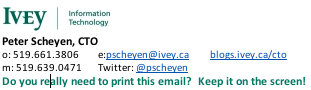

Notice the last line? It challenges the reader to think first before printing the email. I have absolutely no evidence to suggest that this makes a difference to anyone but I do know that such a message recently gave me pause. Since adding the line at the end of my signature can't hurt and might actually be beneficial I figured I'd jump on the bandwagon.
I really do encourage everyone to do the same. So how do you edit an email signature? Below is a quick synopsis on how to edit signatures using two common email readers: Microsoft Outlook and Mac Mail. Users of other mail readers can use Google for instructions on editing their signatures. Here are some links to relevant Google searches for Google GMail, Mozilla Thunderbird, Microsoft Outlook Express, Microsoft Entourage, Microsoft Hotmail (Microsoft must really want to get email right by trying it 15 different ways).
Microsoft Outlook
First a couple of caveats. One: I'm a Mac. Two: These instructions are for Office 2007.
Start Outlook and Select "Options" from the Tools menu. This will display a set of Options panels. Select the Mail Format tab.
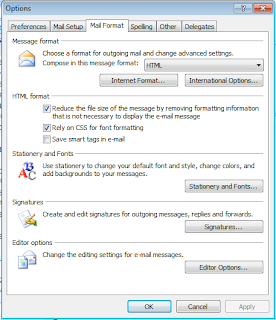
Click the "Signatures" button and in the panel that pops up select New and enter a name.
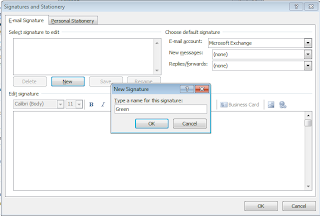
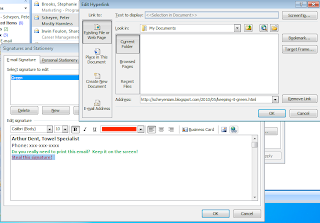
Edit your signature like you would a mail message. Typically you include your name, your position, your company name, and contact information. Add an extra line at the bottom that reads "Do you really need to print this email? Keep it on the screen!". It's a nice touch to highlight that text and colour it green.

When you start a new message you should get your signature automatically.
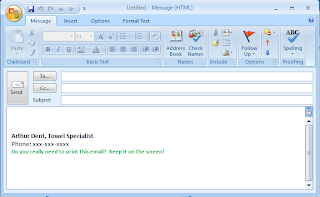
For added bonus points add "Steal this signature!" either on an additional line or in parentheses and link to this blog post (http://scheyeniam.blogspot.com/2010/05/keeping-it-green.html).
Apple Mail
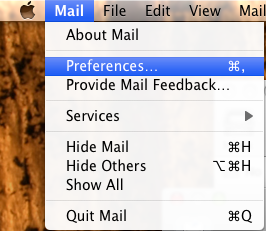
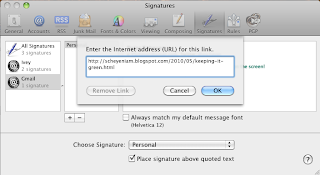
With Apple Mail in focus open the Preferences under Mail from the Menu or just press Command-,.
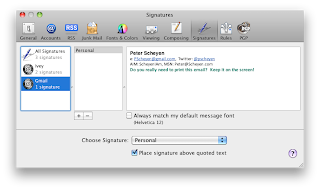
Choose "Signatures" from the Preferences panel.
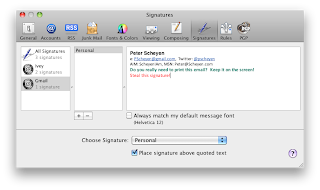
Edit your signature like you would a normal mail message. Typically you include your name, your position, your company name, and contact information. Add an extra line at the bottom that reads "Do you really need to print this email? Keep it on the screen!". It's a nice touch to highlight that text and colour it green (press Command-Shift-C and select the Green of your choice). For added bonus points add "Steal this signature!" either on an additional line or in parentheses and link (by highlighting the text and pressing Command-k) to this blog post (http://scheyeniam.blogspot.com/2010/05/keeping-it-green.html).
Now when you edit a new message or reply to an existing message your signature will be included automatically. You may want to create multiple signatures for different recipients. Mail makes it easy to select between different signatures while you are composing your message.
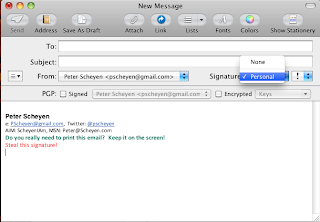
Given this spirit of sustainable business I have recently modified my email signature in order to discourage physical printing of messages that I send.

Notice the last line? It challenges the reader to think first before printing the email. I have absolutely no evidence to suggest that this makes a difference to anyone but I do know that such a message recently gave me pause. Since adding the line at the end of my signature can't hurt and might actually be beneficial I figured I'd jump on the bandwagon.
I really do encourage everyone to do the same. So how do you edit an email signature? Below is a quick synopsis on how to edit signatures using two common email readers: Microsoft Outlook and Mac Mail. Users of other mail readers can use Google for instructions on editing their signatures. Here are some links to relevant Google searches for Google GMail, Mozilla Thunderbird, Microsoft Outlook Express, Microsoft Entourage, Microsoft Hotmail (Microsoft must really want to get email right by trying it 15 different ways).
Microsoft Outlook
First a couple of caveats. One: I'm a Mac. Two: These instructions are for Office 2007.
Start Outlook and Select "Options" from the Tools menu. This will display a set of Options panels. Select the Mail Format tab.

Click the "Signatures" button and in the panel that pops up select New and enter a name.

Edit your signature like you would a mail message. Typically you include your name, your position, your company name, and contact information. Add an extra line at the bottom that reads "Do you really need to print this email? Keep it on the screen!". It's a nice touch to highlight that text and colour it green.

When you start a new message you should get your signature automatically.

For added bonus points add "Steal this signature!" either on an additional line or in parentheses and link to this blog post (http://scheyeniam.blogspot.com/2010/05/keeping-it-green.html).

Apple Mail
With Apple Mail in focus open the Preferences under Mail from the Menu or just press Command-,.

Choose "Signatures" from the Preferences panel.

Edit your signature like you would a normal mail message. Typically you include your name, your position, your company name, and contact information. Add an extra line at the bottom that reads "Do you really need to print this email? Keep it on the screen!". It's a nice touch to highlight that text and colour it green (press Command-Shift-C and select the Green of your choice). For added bonus points add "Steal this signature!" either on an additional line or in parentheses and link (by highlighting the text and pressing Command-k) to this blog post (http://scheyeniam.blogspot.com/2010/05/keeping-it-green.html).


Now when you edit a new message or reply to an existing message your signature will be included automatically. You may want to create multiple signatures for different recipients. Mail makes it easy to select between different signatures while you are composing your message.

Subscribe to:
Posts (Atom)