Showing posts with label apps. Show all posts

Thursday, September 20, 2012

How-to: Fix iOS6 App Store not loading

Like many others I was not so much excited but very curious to get my hands on Apple's new iOS 6 update.  One feature that I was particularly interested in trying was the Passbook app to keep track of things like boarding passes, loyalty cards, etc.  When I started up the app I was greeted with a button inviting me to go to the App Store (you need to download apps that integrate with Passbook).  Once in App Store I was greeted by an error message telling me that my phone cannot connect to the App Store.  Huh?  How'd Apple let this get out the door?

After playing with the phone a little more I noticed that every time I opened App Store app I got the same message about not being able to connect to the App Store.  Once the app was started I could navigate the Featured, Charts, etc. links but the initial error message always (and annoyingly) popped up.

Turns out this is a common error that people are experiencing and the discussion boards at discussions.apple.com are all atwitter.  While the solution below may seem bizarre it does seem to do the trick.  The nature of the solution suggests to me there is some kind of certificate issue at play but the details of that don't really matter.

  1. Go to Settings -> General -> Date and Time and turn OFF "Set Automatically"
  2. Set the date 2 or more years into the future
  3. Go back into the App Store app where you will get the same error message.  No matter.
  4. Go back into Settings -> General -> Date and Time and turn "Set Automatically" back ON
Now you should be able to successfully launch the App Store app without the error message.  You will likely get a message about a certificate not being recognized or being out of date.  Just touch the Continue button when that comes up. 

Thursday, January 26, 2012

How-to: Use an external display with an iPad, iPhone, or iPod Touch

Quick Bite: Apple provides a number of ways to export iPad, iPhone, and iPod Touch video, audio and graphics to external displays like a television or projector.  Full user interface mirroring is only possible using iPad 2 and iPhone 4S devices.  Mobile warriors generally will invest in an Apple TV 2 or an inexpensive remote control app.  Two major caveats: Full mirroring presents a security challenge as your password will be presented on the external display.  And Apple TV 2 may not support the type of wifi security you use in a typical campus or office setting.

Being the head of IT for a major business school, I often get asked by professors and instructors how they can make use of their iPad to display classroom content on a projector or screen.  Unless you're trapped behind a lectern or podium you need a lightweight, portable tool for displaying presentation materials.  Tablet computers like Apple's iPad are ideally suited for the mobile presenters providing there is a way to export the iPad display to a monitor or projector.  In this article I will cover the different ways to display content from your iPad, iPhone or iPod Touch (collectively known as iOS devices).

Mirroring vs Video Output
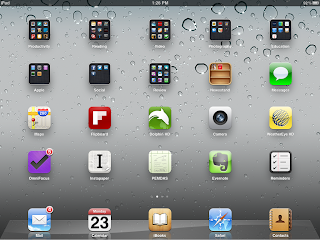
Mirrored Springboard
First, it is important to understand the differences between "mirroring" and "video-enabled apps".  Mirroring refers to the ability to display the entire iOS interface on an external display.  This includes not only the output of apps like Keynote or Videos but also Email, iCal, websites and even the app springboard itself (as illustrated here on the right).  Mirroring is supported only with the iPad 2 and iPhone 4S.  These devices output up to 1080p resolution and 720p for video.  Please note that when mirroring ALL of the user interface is displayed to the screen including the virtual keyboard and the keys you are pressing even if those keys are typing out your password.  If you are going to enter a password then turn off mirroring first by using one of the methods described below.

All other iOS devices, including the original iPad, iPod Touch (2nd gen and up), and iPhone 3GS and up support video output only for video-enabled apps.  Video-enabled apps are apps that have been specifically designed to output to an external display.  The built-in Videos and YouTube apps, for example, can output video and audio.  The iOS version of Keynote supports exporting its presentation display (it exports nothing while editing).  These older iOS devices will output up to 720p (which is the resolution used in the new building classrooms).  Even older devices like the original iPhone and earlier iPods can output video and audio only using a Composite Video Adaptor.

Video Adaptors

Apple and 3rd party vendors produce an array of adaptors that can be used to output iOS device displays.  These adaptors all feature a standard Apple 30-pin doc connector on one end and a standard video connector on the other allowing you to connect video cables to your iOS device.
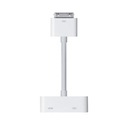
Digital Display Adaptor

Digital Display (HDMI) Adaptor

If you can guarantee that the displays or projectors you will be using support HDMI then this is definitely the adaptor to purchase.  It supports full mirroring for iPad 2 and iPhone 4S devices and supports output for video-enabled apps on older devices.  The one connector will carry both video and audio from the iOS device to the display.

VGA Adaptor
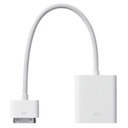
VGA Adaptor

If you can't guarantee that you'll always have an HDMI capable display then I recommend getting a VGA adaptor instead.  VGA has been around far longer than HDMI and is almost always supported.  You can still mirror your iPad 2 and iPhone 4S user interfaces and output the display for video-enabled apps on other devices.  You'll need to use a stereo audio cable if audio is required.

Component/Composite Adaptor

You can also purchase adaptors for more traditional television displays including composite and analog HD component video.  Almost all Apple devices, including legacy devices like the iPod Nano, are supported but you can only export audio, video and picture slideshows using this adaptor.    

Regardless of the adaptor used, if you are expecting to wander freely around the classroom or boardroom projecting content from your iPad then none of the above solutions are for you.  All of these solutions leave your device tethered to a video cable.  In the next section I'll describe two options for untethered presentation of content.

Remote Control Apps

If your iOS device needs to be tethered why not control it via a remote control app on your iPhone or iPod Touch.  This method can be used to control an iPad or a Mac.  It's not the most elegant solution and remote control apps are usually limited to controlling only one kind of application.  For instance, the Apple Remote app can be used to control iTunes for playback of audio or video (Tango Remote is similar).  Apple Keynote Remote can be used to control Keynote on a Mac or iOS device.  2Screens has its own remote.  And so on...  A more general way to control a Mac or PC is via a VNC app running on your iOS device but that is beyond the scope of this article.

Apple TV 2
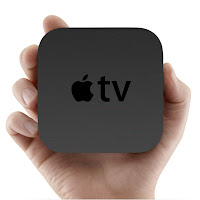
By far the most elegant solution for displaying your iOS device content is using an Apple TV 2 device.  Or it would be the most attractive if not for one frustrating flaw that Apple has not yet addressed (more on that in a moment). 

Along with the introduction of the $99 (CDN$120) Apple TV 2 in September 2010, Apple introduced a feature called AirPlay which enabled the Apple TV 2 to serve as an output display for an iPad 2 or an iPhone 4S without any video or audio cables.  This enabled device mirroring as if a digital display adaptor is connected to your device. 

To use AirPlay ensure that your Apple TV and iOS devices have the latest versions of software.  You'll need iOS 4.3 or later on your iPad (1 or 2), iPhone 3GS or later, or iPod Touch 2nd gen or later.  You'll also need Apple TV 4.2 or later on your Apple TV.  If you routinely install updates when notified by Apple then you will be fine.

Once you are set up and on the same wifi network, your iOS devices will automatically detect the presence of an available Apple TV.  Video-enabled apps like Videos and YouTube will display an AirPlay icon (see right) when an Apple TV device is detected.  Touch the icon and select the Apple TV device from the list to export the iOS display to the Apple TV.  The AirPlay icon will then turn blue. Touch the AirPlay icon again to disable the external display (say, if you want to enter a password).  This method works for any iOS device that supports video-enabled apps or full mirroring.   

The other AirPlay method, available only for iPad 2 and iPhone 4S devices, enables full device mirroring.  To do this, double-press the home button to display the multi-tasking bar and then swipe right.  You should see something similar to the illustration below.  The AirPlay icon will be displayed whenever an Apple TV 2 device is detected.  Touch the AirPlay icon to enable full mirroring of the iPad 2 or iPhone 4S display.  This will mirror all aspects of the display to the Apple TV device regardless of whether or not the app is video-enabled.
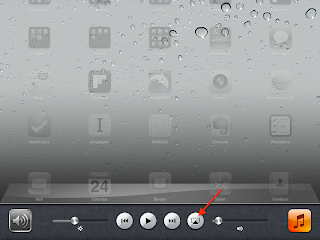
Enabling Mirroring

Note that the iOS device and the Apple TV 2 need to be on the same wifi network for this to work.  This is where it all breaks down for use in many corporate or campus settings.  At this time Apple TV 2 does not support WPA2 Enterprise encryption.  Most well run corporate and campus wireless networks use this more robust type of wireless encryption.  If you run a small, single subnet network (like a home network) then you might be ok.  Regardless, lack of WPA2 Enterprise support on Apple TV is a huge oversight by Apple.  Especially considering that Apple TV 2 runs iOS and all other iOS devices support this encryption method.  

I hate to end on a bummer note but that's it.  I've contacted Apple about this but they are characteristically tight lipped about when or even if this will be addressed.  Given Apple's recent embrace of education technology I'm hoping that they fill this easy-to-fix hole.  

Friday, July 1, 2011

What's on your Pod (Update)

Recently I completed an intense three week management course called the Ivey Executive Program (small plug for my employer) where I met many amazingly talented people.  During the first week of the course my iPad was a source of interest for many that had never used one before.  By the second week at least four shiny new iPad 2s were in class with more on order.  I found myself making app suggestions daily and pointing people to my blog where, about a year ago, I posted What's on your Pod?  Since the time of the original article I have, naturally, discovered many other apps that I use weekly and even daily.  It's high time for an update.

As with the last article, I've divided the apps up into three categories: apps on my iPad, apps on my iPhone, and apps that I use on both.  Let's start with the apps I use on both my iPhone and my iPad.


Both (iPhone and iPad)
  • Twitter (Free) - I still use this app to view my Twitter feed but Flipboard (keep reading) has become my app of choice of consuming nearly all of my social and news feeds.
  • Tumblr (Free) - You might think Tumblr is just another blog site like Blogger/Blogspot and you wouldn't be wrong.  However, Tumblr kills as a photo blog and that's exactly what I use it for.  All the blogs I follow on Tumblr are photo blogs (including my daughter's).  
  • Instapaper (Free) - Have you ever been in the situation where you just discovered a really interesting article but you just doing have the time to read it right now?  Services like Instapaper and Read It Later solve this by installing a small script in your browser that you can click to "read it later".  Then use the iOS app to read the article at your leisure (even when offline).
  • 1Password ($9.99) - I commented on 1Password in What's on your Mac.  The $10 cost for the iOS app is well worth the convenience of having your usernames and passwords accessible from your devices.
  • Netflix (Free) - If you're a Netflix subscriber then get this app.  You know what to do with it.

iPad

  • Flipboard (Free) - Flipboard is well known to all but new iOS users.  Basically Flipboard incorporates your news feeds (like Google Reader), social media (like Facebook and Twitter feeds), and curated news content and presents it in a book-like interface.  Next to Mail, Flipboard may very well be the second most frequently used app that I own.  It even integrates with Instapaper for those times when you've found something interesting but don't have time to read it just now.  What it really needs next is support for Tumblr!
  • Keynote ($9.99) - Apple's presentation app.  I find making presentations is easier on the iPad than on a desktop.  The forthcoming iCloud integration will iron out the one remaining wrinkle of getting content to and from your iPad.  
  • Numbers ($9.99) - Apple's spreadsheet app thoughtfully designed for touch interfaces.  This isn't just a port of a desktop app.  The user interface has been redone in every detail to take into account touch interfaces. 
  • iAnnotate PDF ($9.99) - I'm not sure this one is worth $10 but it is a good application for not only reading PDFs (many apps do that) but also for making complex annotations like highlighting, notes, underlining, tabs and bookmarks and more.  I used this app during the Executive Program to read my cases.
  • ComicBookLover (Free) - I had previously loaded the Marvel and DC comic book readers but each is limited to just those publishers.  CBR (and CBZ) are now the standard formats for distributing comics so why not just use a generic reader like ComicBookLover.  
  • Epicurious (Free) - Recipe viewer and search tool with a beautiful user interface.
  • GarageBand ($4.99) - This is a fun one but I don't know if anyone is going to make any serious music with it.  My youngest loves just tooling around in the app and making cool sounding song snippets. 

iPhone/iPod

  • Skype (Free) - It's unclear what Microsoft is going to do with Skype but for now it is a great way of making free phone calls.
  • Samsung Remote (Free) - If you have a Samsung TV with a wifi or internet connection then you might want to try this remote.
  • Groupon (Free) - If you are a Groupon user then get this app and stop printing your Groupon receipts.  
  • JotNot Scanner Pro ($1.99) - Anyone who works in an office environment has learned that the best way to take notes is to snap photos of the whiteboard, flipchart, etc.  JotNot not only snaps the photo but crops out the irrelevant edges and then increases the contrast to make the photo much more readable.  Well worth the $2 cost.
  • Hipstamatic ($1.99) - Cool retro photos using interchangeable vintage lenses, flashes, and film.


Cases

I thought I'd throw in a special mention for some iPad cases that I've taken a shining to as well.  First is the DODOcase that I have for my original iPad.  Thanks to Ken Drouillard for giving me this hand-me-down after he upgraded to an iPad 2.  This case never fails to get commented on once people realize that there's an iPad inside what looks like a regular black hardcover notebook.  The bamboo construction is light, sturdy, beautiful and pro-eco.  

DODOcase (closed)

DODOcase (open)

The second case I'll mention is a wooden iPad 2 case by Miniot.  This gorgeous cover uses the same magnetic mechanism used by Apple's smart covers.  The instant-on feature even works with it.  When I eventually move on to an iPad 2 (or 3) this will likely be the cover I get.  Again, a big thanks to Ken for discovering this one.


As always, if you have apps that you think are fantastic I really want to know about them.  Please comment!

Saturday, June 5, 2010

What's on your Pod?

I recently acquired a new Apple iPad as part of an experiment we're running at work.  In addition to my iPhone, I now have a couple of connected devices that are meant to make my life better.  I've been taking a look at the dizzying number of applications available for both devices and it got me wondering what applications do the folks I know have on their devices.

In addition to the built in applications for email, browsing, contacts, calendars, photos, and tunes here's how my devices are kitted out.

On Both

I think it's pretty well known that iPads can run iPhone applications.  Some applications are written to be resolution independent and look stunning on either device (yay!).  Others are meant strictly for the lower resolution of an iPhone (or iPod Touch).  They are functional on an iPad but look pretty bad when pixel doubled (anyone working at my old company can attest to the poor visual results of pixel doubling).
  • Evernote (Free) - essential for anyone like me who needs their brain backed up and/or extended.  Evernote syncs your notes seamlessly between all your devices and computers.
  • OmniFocus ($24.99) - the best Getting Things Done (google "David Allen GTD") application I've come across.  Synchronizes your todo information across all devices and computers.  No iPad version yet though (pixel doubling -- puke).
  • Tweetdeck (Free) - by no means am I a media socialite but Tweetdeck does a great job at presenting your Twitter, Facebook, LinkedIn, foursquare (and other) feeds in one UI
  • Dropbox (Free) - the more computers and connected devices we get the more important it is to have access to your important files no matter where you are in the meatsphere.  Dropbox seamlessly synchronizes your files across all computers and provides access to your files on mobile devices.  Comes with 3G storage for free.  (Oh Apple, why the $99 charge for MobileMe?)
  • Net Portal ($1.99) - I don't really know why I bought this app.  It lets you access the files on your computers from your iPhone or iPad.  But if my important files are in DropBox why do I need to get at my computer you ask?  Good question.  Don't buy this app.
  • Remote (Free) - Apple's remote control allows you to control your iTunes library or Apple TV
  • Skype (Free) - 'nough said
  • Flixter (Free) - Movie reviews no matter where you are
  • Urbanspoon (Free) - Restaurant reviews and recommendations no matter where you are
  • IM+ Lite (Free) - Nice multi-IM client with support for MSN, AIM, GTalk, Yahoo, and others.  Supported by ads unless you purchased the paid version.
  • Mocha VNC Lite (Free) - Control your computers from your iPad or phone (although the phone resolution is a bit tiny for this to be practical).
On iPad
  • iBooks (Free) - Apple's book reader.  Fantastic.
  • Noterize ($2.99) - Note taking ala the built in Notes application but with many more features including the ability to do freehand annotations, and load PDF and PPT files.
  • Marvel (Free) - Marvel's comic book reader.  Does a great job at providing the comic book experience in electronic form (don't tell kimota94 though). 
  • Adobe Ideas (Free) - freehand sketch tool from Adobe.  Works better with a stylus such as the Pogo Sketch
On iPhone

My iPhone apps tend to be applications take either deal with photography (the iPad doesn't yet have a camera) or that leverage the high mobility of a phone over the iPad.  
  • PS Mobile (Free) - Adobe Photoshop Mobile.  Simple photo touch ups right on your phone.
  • FX Photo Studio ($0.99) - Photo effects on your phone.
  • Stanza (Free) - A free ebook reader.  Before the iPad and iBooks I read books on my phone using Stanza.
  • Momentile ($4.99) - Momentile is a social media site that, as far as I can tell, really hasn't taken off but I like it.  The idea is that you take a photo every day (or as near to every day as you can) and upload it to your Momentile site as a kind of photo diary.  The iPhone client lets you upload from your phone (which is really essential given that you are trying to capture an image every single day and in unpredictable situations).
  • foursquare (Free) - Ok, so I foursquare.  Shut up.
So iPhone, iTouch, and iPad compadres... what's on your pod?